Tablet Help for Seniors: How to Set Up a Tablet So It’s Easy to Use
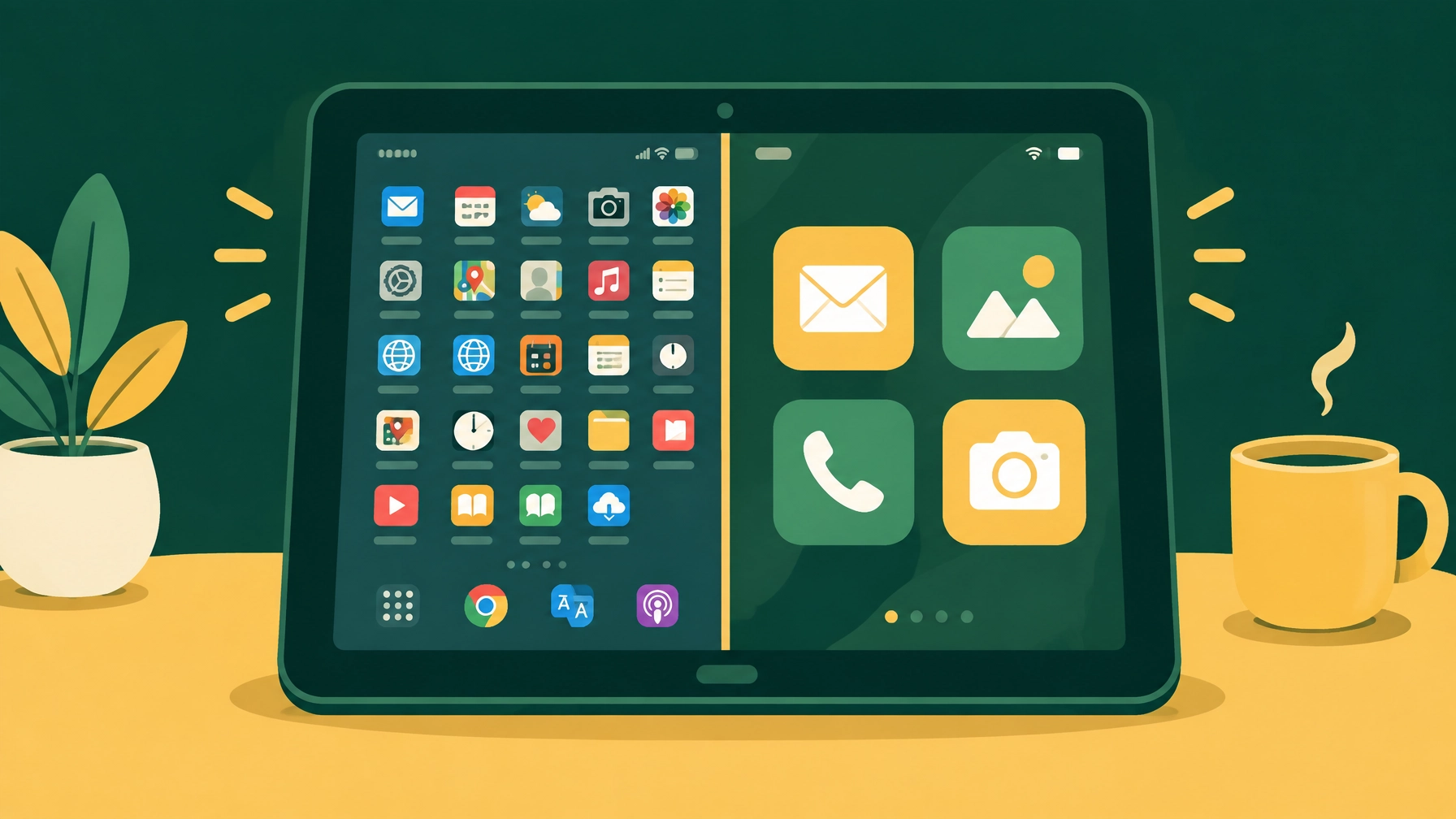
A tablet can be a lovely way to keep in touch, read the news, look at photos and enjoy films. But it can also feel harder than it should. Small writing, too many icons and unclear settings can quickly become frustrating.
This guide offers practical tablet help for seniors and anyone who wants a calmer, easier device. It may also help if you’re looking for tablet help for seniors at home or need help setting up a tablet for an elderly parent.
There are no silly questions. You should be able to use your tablet in a way that suits your eyes, ears, hands, memory and everyday routine.
The aim isn’t to learn everything. It’s to make the things you want to do feel easier.
Why can a tablet feel confusing?
Most tablets are designed to do many things. That can be useful, but it can also make the screen feel crowded.
You may notice:
- Text that is too small to read comfortably
- Icons that look similar
- Apps you never use
- Notifications that appear at unexpected times
- Settings with technical names
- A screen that goes dark before you have finished reading
- Sounds that are too quiet, too loud or difficult to understand
None of this means you are “bad with technology”. It usually means the tablet has not yet been adjusted around you.
The good news is that many helpful changes are already built into the tablet.
Start with the most important settings
Before adding lots of apps, set up the basics. Take one step at a time and test each change as you go.
1. Connect to Wi-Fi
Open Settings and choose Wi-Fi or Network and internet. Select your home network and enter the Wi-Fi password carefully.
A stable Wi-Fi connection helps with video calls, software updates, photos and web browsing. If the connection is unreliable, Wi-Fi troubleshooting support may help.
2. Sign in with the right account
An iPad uses an Apple Account, previously called an Apple ID. Most Android tablets use a Google Account.
This account helps you download apps, recover the tablet if you forget the passcode and back up important information. Keep the account details somewhere safe. Avoid sharing passwords by text message or email.
If you are setting up a tablet for a parent, it is worth agreeing who will help manage account recovery. The tablet should still belong to the person using it, with their privacy respected.
3. Make the writing bigger
On an iPad, look under:
Settings → Display & Brightness → Text Size
For more options, try:
Settings → Accessibility → Display & Text Size → Larger Text
On an Android tablet, look under Settings → Accessibility or Settings → Display. Search for Font size, Text size or Display size.
You may need to increase both text size and display size. Text size changes the writing. Display size can make buttons and icons larger too.
4. Adjust brightness and volume
Set the brightness so the screen is clear without being uncomfortable. A very bright screen can be tiring in a dim room.
Next, check the volume using the buttons on the side. Play a short video or sound so you can test it properly.
If you use headphones or hearing aids, check those as well. The best volume is one that is clear and comfortable, not simply the loudest setting.
5. Try magnification
Magnification is useful when you need extra help reading something small.
On an iPad, go to:
Settings → Accessibility → Zoom
On Android, look for:
Settings → Accessibility → Magnification
Choose one magnification method and practise it together. Too many gestures can make things more confusing, so keep the explanation simple.
Apple’s official iPad accessibility guide and Google’s Android accessibility overview explain the options in more detail.
6. Use Do Not Disturb
If beeps and pop-ups are distracting, set up Do Not Disturb or Focus.
You can usually find this under Settings → Focus on an iPad, or Settings → Notifications on Android. You could schedule it overnight or during times when you want peace and quiet.
You can often allow calls from important contacts while silencing other alerts. This makes the tablet calmer without cutting you off from family.
Make the home screen simpler

The home screen should show the things you use most. It does not need to display every app.
Start by moving unwanted apps away from the first screen. You may be able to place them in a folder or remove them from the home screen without deleting them completely.
Keep the most useful apps easy to find, such as:
- Video calls
- Messages or email
- Photos
- Internet browsing
- Weather
- Calendar
- Maps
- Your preferred news or reading app
Use folders only if they make things clearer. A folder called Family, Reading or Useful may help. If folders feel confusing, it is perfectly fine not to use them.
You can also add useful widgets. A widget is a small box on the home screen that shows information, such as the weather or calendar. Choose only the ones that genuinely help.
Large, familiar icons and a little empty space can make a big difference.
Make reading more comfortable

A few extra display changes may help your eyes feel less tired.
Try:
- Turning on Bold Text
- Increasing contrast
- Reducing transparency or visual effects
- Choosing a simple, uncluttered wallpaper
- Increasing the screen timeout
- Using dark mode if it feels more comfortable
- Turning off features that make the screen move or flash
A longer screen timeout can be especially helpful if you need more time to read. Look for Auto-Lock, Screen timeout or Sleep in the display settings.
Accessibility settings are not special add-ons that you have to justify. They are normal tools for making a device fit your needs. You can read more about Lady Techy’s approach on the Accessibility Tech Support page.
Make calls easier to hear and see
Tablets can be a wonderful way to stay in touch, but video calls may need a little preparation.
First, check that the microphone and speaker work. Make a short test call to someone you trust. Ask them whether your voice sounds clear and whether you can hear them comfortably.
You can also explore:
- Subtitles or captions for videos and calls
- Larger captions with a stronger background
- Hearing aid pairing or hearing device settings
- Headphone or Bluetooth audio
- Flash or visual alerts for incoming notifications
- A stand that keeps the tablet at a comfortable viewing angle
Android includes options such as captions, Live Transcribe and hearing aid support on compatible devices. iPad also offers captions, hearing device support and other hearing features. The exact names vary by model and software version.
Keep the tablet safe
A few simple safety steps can prevent many problems.
Use a strong passcode
Choose a passcode that is difficult for others to guess. Avoid using an obvious birthday or repeating number.
If remembering a long code is difficult, talk to someone you trust about a safe way to store it. Do not write it on a note attached to the tablet.
Be careful with apps
Only install apps from the official App Store or Google Play Store. Check the app name and publisher before downloading.
Be cautious if an app:
- Promises an instant prize
- Says your tablet has a dangerous virus
- Demands payment before explaining why
- Asks for unusual permissions
- Uses urgent or frightening language
A pop-up saying “Call now” or “Your device is infected” is often designed to worry you. Close the page rather than calling the number.
Check subscriptions
Some apps offer free trials that become paid subscriptions. Review subscriptions regularly in your Apple or Google account settings.
If you are unsure whether a charge is genuine, pause before paying. Ask a trusted person to look at it with you.
The National Cyber Security Centre’s online safety advice also recommends software updates, strong separate passwords and two-step verification.
Use the tablet to stay connected
Once the basics are comfortable, set up the activities that matter most to you.
You could:
- Add family members to a video-calling app
- Create a favourites list for regular contacts
- Practise sending a message
- Set the tablet to back up photos
- Create albums for family events
- Add shortcuts to favourite websites
- Use voice typing if tapping is tiring
For video calls, a tablet stand can make the experience much easier. It keeps the screen steady and leaves your hands free.
You do not have to master every feature. It is enough to learn the few things that make your day better.
What should you do when something goes wrong?
When the tablet behaves unexpectedly, try these steps in order:
- Pause. Don’t keep tapping if you are unsure what has appeared.
- Look for a clear close button. This may be an X, Back button or Cancel option.
- Return to the home screen. On many tablets, swipe up from the bottom or press the Home button.
- Check the basics. Is the volume on? Is Wi-Fi connected? Is the battery charged?
- Restart the tablet. Turning it off and on again can resolve small problems.
- Ask for help. Take a photo of the message or write down what happened.
You won’t make things worse by asking. A patient explanation can often solve the problem quickly.
If you need practical Phone & Tablet Setup support, Lady Techy can help adjust the device, organise the home screen and practise the features you want to use.
Tablet help for seniors at home in Reading and Berkshire
If you’re in Reading, Caversham or nearby Berkshire, in-home support can make setup much more comfortable. You can use your own Wi-Fi, your own chair and your own routines while we work through the tablet together.
This can be useful if you want:
- iPad help for seniors
- Help setting up a tablet for an elderly parent
- A calmer, simpler home screen
- Accessibility settings adjusted around you
- Support with video calls, photos or messaging
- A friendly computer tutor for seniors who explains things clearly
You can book a free 15-minute chat to explain what you need. The booking form asks whether the call is for yourself, a parent or family member, a neighbour or someone you support professionally. In the issue box, you could write:
“I need help setting up an Android tablet for my mum. She would like larger text, easier video calls and fewer icons on the home screen.”
Choose whether you would prefer a phone call or Google Meet, then select Confirm booking. There is no obligation and no pressure to book further support.
Frequently asked questions
Is tablet help for seniors only for older people?
No. Tablet support is for anyone who finds a device difficult to see, hear, understand or control. Everyone’s needs are different.
Can someone help set up a tablet for an elderly parent?
Yes. A family member can book a chat and explain what would make the tablet easier. It is best to involve the person using it so the settings reflect their preferences.
Is iPad help for seniors different from Android tablet help?
The settings are arranged differently, but the main goals are similar: larger text, clearer sound, fewer distractions, safer accounts and easy ways to stay connected.
Can accessibility settings be changed later?
Yes. You can change them whenever your needs change. You do not have to get everything perfect on the first day.
Do I need to know my passwords before asking for help?
It is useful to have your Wi-Fi and account details nearby, but you do not need to understand every setting. Lady Techy can help you work through what is needed safely.
A tablet should support your life, not make you feel tested. With a few thoughtful adjustments and patient practice, you can move from confusion to confidence one manageable step at a time.