Why Is My Computer So Slow? Simple Fixes You Can Try at Home

Why is my computer so slow?
When a computer takes ages to start, hesitates when you click, or struggles with everyday tasks, it can be worrying. Many people wonder if they have accidentally broken something. Usually, you haven’t.
A computer running slow can have several ordinary causes: too many programmes open, a crowded browser, little storage space, updates waiting to install, or the computer needing a restart. Sometimes heat can affect performance too.
This is something I’m asked about a lot when I visit people at home around Reading, and it can feel frustrating when something that used to work smoothly suddenly seems difficult. There are no silly questions, and you don’t need to tackle every possible cause at once. Try this simple checklist, one step at a time.
First, check whether it’s the computer or the internet
If websites and online videos are slow but documents or other programmes open normally, the issue may be your internet connection rather than the computer itself. If everything feels sluggish, including opening a folder or typing, the computer may be the cause.
You can also try opening a different website. If only one site is slow, the problem may be with that site. If you’re unsure, leave this check for now and try the steps below.
Simple fixes for a computer running slow
1. Save your work and restart
A restart closes programmes running in the background and gives the computer a fresh start. It’s a sensible first step, especially if your computer has been left on for a long time.
Save any work first. Then choose Restart from the computer’s power menu. On a laptop, keep it plugged in if the battery is low, and give the computer time to finish starting up before opening lots of programmes.
2. Close programmes and browser tabs you don’t need
Each open programme or browser tab uses some of the computer’s resources. A handful of tabs may be fine, but lots of them can add up, particularly on an older or less powerful computer.
Close what you aren’t using, one window at a time. If a document asks whether you want to save changes, take a moment to check before closing it. You can always bookmark a website or write down its name before closing the tab.

3. Check how much storage space is free
Your computer needs room to save files and carry out everyday tasks. If the storage is almost full, it may run more slowly, and there may not be enough space for updates.
You can check storage in your computer’s settings. On Windows, look under Settings > System > Storage. On a Mac, open Apple menu > System Settings > General > Storage. Apple explains exactly where to find this in See used and available storage space on your Mac. Menu names can differ slightly between versions, so look for the closest match on your own screen.
If space is tight, start with items you recognise and know you no longer need, such as old downloads. Be careful with this step: don’t delete files just because you don’t know what they are. If you’re not sure what something does, leave it where it is.
4. Check for updates
Updates can include improvements and fixes, but they can also take time to download and install. If an update is waiting, your computer may feel busy or slow until it has finished.
Look for Windows Update in Windows Settings, or Software Update in Mac System Settings. Save your work, plug in a laptop if needed, and follow the instructions on screen. Avoid switching the computer off while it is installing an update.
Microsoft’s tips to improve PC performance in Windows covers updates and start-up apps. As with any set of instructions, the wording can change between versions, so look for the closest match on your own screen.
5. Reduce the programmes that open automatically
Some programmes start running as soon as you sign in, even if you don’t need them straight away. If several do this, your computer can take longer to start and may feel busy afterwards.
In Windows, you can look at Startup apps in Task Manager. On a Mac, check General > Login Items in System Settings — Apple explains where these live in Change Login Items & Extensions settings on Mac. Only switch off items you recognise and don’t need to open automatically. If you’re unsure about an item, leave it alone rather than guessing.
6. Give the computer room to stay cool
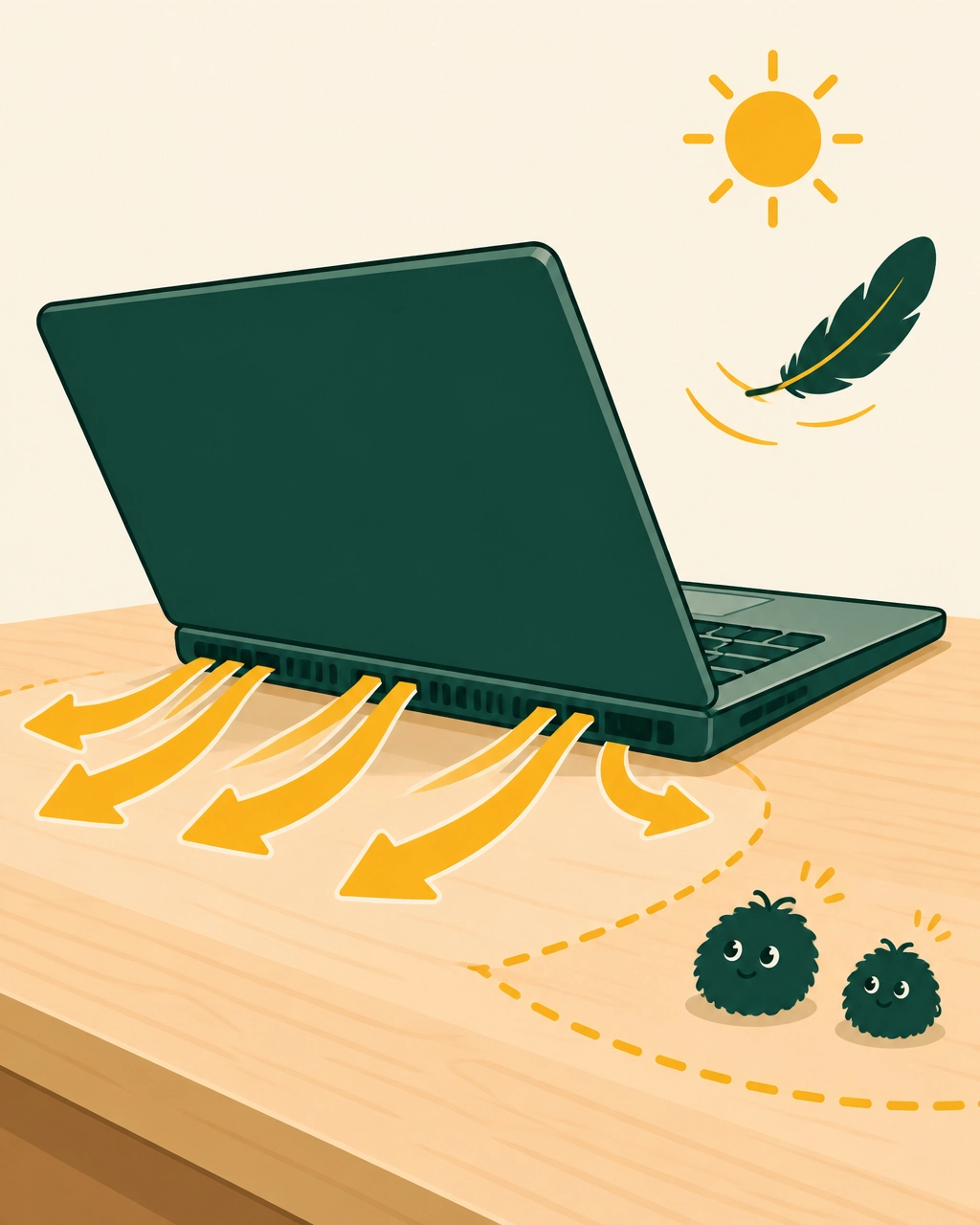
A computer may slow down if it gets too warm. Make sure the vents aren’t blocked by a cushion, blanket or pile of papers. Using a laptop on a hard, flat surface can help air circulate.
You can gently remove dust from the outside of the computer, but don’t open the device or poke anything into its vents. Lady Techy provides software and everyday technology help, not physical hardware repairs. If the computer stays unusually hot, shuts down unexpectedly or makes worrying noises, stop using it and arrange appropriate professional advice.
Your quick checklist
If you’d like to keep it simple, try these steps in order:
- Save your work and restart the computer.
- Close programmes and browser tabs you don’t need.
- Check how much storage space is free.
- Check for system updates and follow the on-screen instructions.
- Review start-up or login items, changing only ones you recognise.
- Make sure the computer’s vents are clear and it can get some airflow.
After each step, give the computer a little time and see whether it feels any better. You don’t need to do everything at once, and there’s no need to make changes you’re uncomfortable with.
What if my computer is still slow?
If the computer remains sluggish after a restart and these checks, there may be another cause. It could be a particular programme, limited memory or storage, an older device, or an issue that needs a closer look. A slow computer does not automatically mean you’ve done anything wrong.
Avoid downloading unfamiliar “speed-up” tools or deleting system files in an attempt to fix it. Those steps can create new problems. If the slowdown appeared suddenly, or the computer is freezing or showing error messages, make a note of what you were doing when it happened. That can be useful when you ask for help.
I provide patient laptop and computer help in Reading and nearby areas, as well as remote support where appropriate. I can help you work through what’s happening at a comfortable pace and explain each step clearly.
From confusion to confidence
A slow computer can be frustrating, but common causes are often straightforward to check. A restart, fewer open tabs, a little storage space and a clear airflow path are useful places to begin. If the problem continues, you don’t have to work it out alone.
If you’d like calm, patient help with your computer, you can visit ladytechy.com to book a free 15-minute chat.