Printer Help at Home: How to Get Printing Working Without the Stress
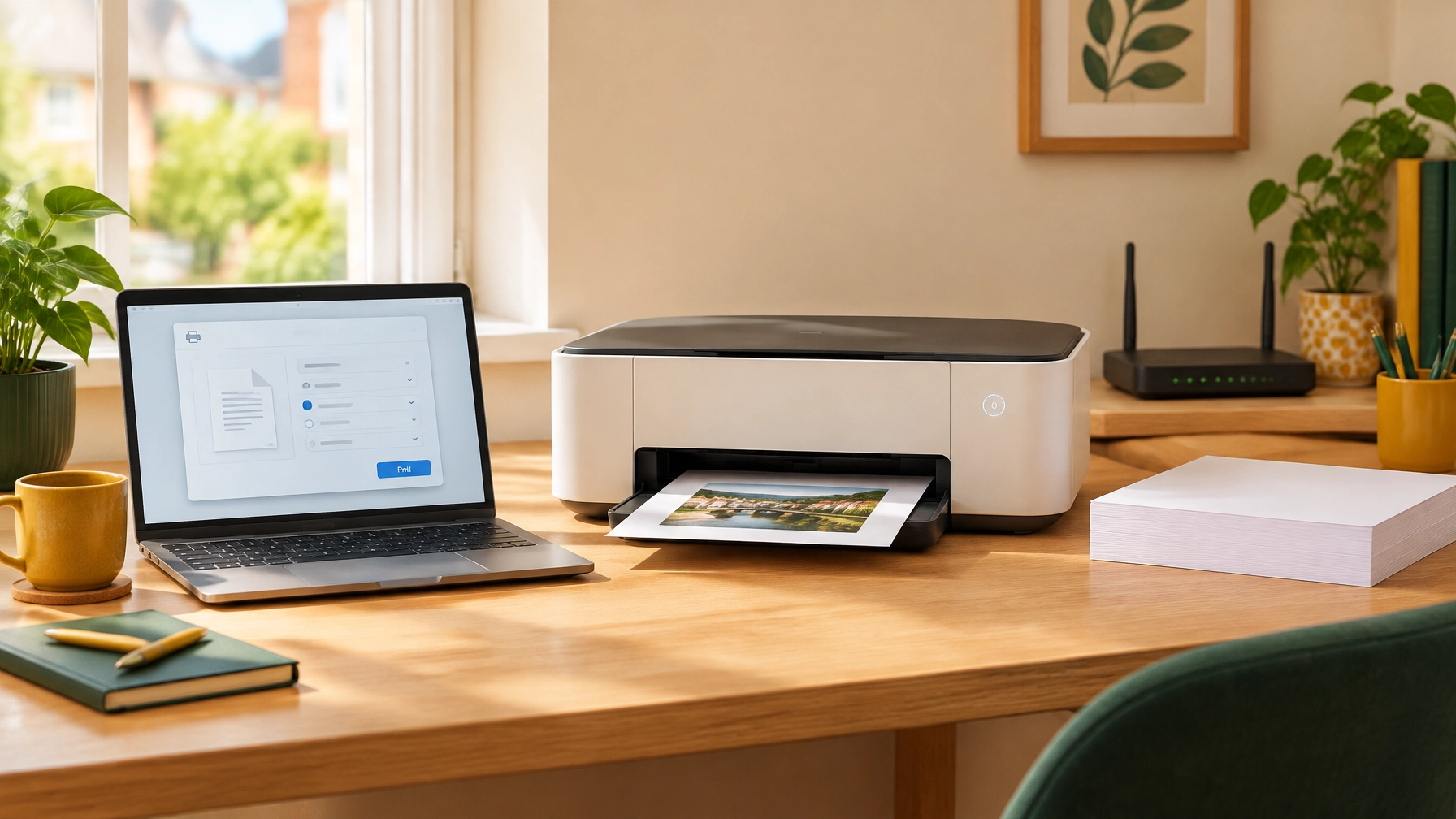
Printing should be simple. You choose a document, press print, and collect the page. When the printer says “offline”, refuses to connect, or produces a blank sheet instead, it can quickly become frustrating.
You’re not doing anything wrong. Printers combine paper, ink or toner, cables, Wi-Fi and computer software. If one part stops communicating properly, the whole process can seem confusing.
This guide explains some common printer problems in plain English. You can work through the steps slowly, one at a time. If you’re still stuck, printer help at home can make the problem much easier to solve.
Lady Techy provides patient, jargon-free in-home printer support in Reading, Caversham and across nearby Berkshire areas.
Why do printers feel so frustrating?
A printer is rarely just a printer. It needs to work with:
- Your laptop, tablet or phone
- Your home Wi-Fi or a USB cable
- Paper loaded in the right way
- Ink or toner
- Printer software, sometimes called a driver
- A print queue that tells the printer what to do
The word “driver” simply means the software that helps your computer communicate with the printer. If this software becomes outdated or confused, the printer may stop responding even when it is switched on.
It’s also common for a computer to send a document to the wrong printer. You may have an old printer listed alongside the current one, or a print job may be waiting in a queue.
There are no silly questions when it comes to technology. A calm, step-by-step check is often all that’s needed.
Start with these simple printer checks
Before changing settings, take a moment to check the basics.
- Check the power
Make sure the printer is switched on and the power cable is firmly connected. If it has an external power box, check that this is connected too.
- Check the paper
Make sure there is paper in the tray. The sheets should be straight, not curled, and the guides should sit gently against the edges.
- Check the ink or toner
Look at the printer screen or the printer settings on your computer. A low cartridge can cause faded pages, missing colours or blank sheets.
- Check the connection
If you use a USB cable, make sure both ends are secure. If you use Wi-Fi, check that the printer is connected to your usual home network.
- Try a test page
Many printers have a “Print test page” option under Settings, Tools or Maintenance. A test page can show whether the problem is with the printer itself or with the computer.
If the printer works from its own menu but not from your computer, the printer is probably fine. The issue may be the connection, print queue or driver.

How to clear a paper jam safely
Paper jams are one of the most common reasons a printer stops working. The important thing is not to pull too hard.
- Turn the printer off
Switch it off and unplug it if possible. This prevents the printer from moving while you clear the paper.
- Open the access panels
Check the paper tray, front panel, output area and rear door. Some printers have more than one place where paper can become stuck.
- Pull the paper slowly
Remove the sheet in the direction it normally travels. Pulling gently helps prevent the paper from tearing.
- Look for small scraps
A tiny piece of paper can keep causing problems. Use a torch or the light on your phone to look inside carefully.
- Reload the paper
Fan the stack gently, keep it below the tray’s maximum line, and adjust the guides so they are snug but not tight.
If the printer continues to report a jam after you have removed the paper, there may be a small piece caught inside or a problem with the rollers. Avoid poking sharp objects into the printer.
What to do when your printer says “offline”
“Offline” usually means that your computer cannot communicate with the printer. It does not necessarily mean the printer is broken.
Try these steps:
- Turn the printer off, wait for around 30 seconds, and turn it on again.
- Restart your computer.
- Check that your computer and printer are connected to the same Wi-Fi network.
- Open your printer settings and check that the correct printer is selected.
- Open the print queue and cancel any documents that are stuck.
- If you use Windows, check that Use Printer Offline is not selected.
A stuck document can hold up everything behind it. Clearing the queue often gets printing working again.
If you use Windows, Microsoft’s guide to fixing printer connection and printing problems provides further instructions. The wording may look slightly different depending on whether you use Windows 10 or Windows 11.
How to connect a printer to Wi-Fi
Connecting a printer to Wi-Fi can be difficult because printers often have small screens and several menus.
Start by checking the Wi-Fi symbol on the printer. It should show that the printer is connected to your home network.
If it is not connected:
- Open the printer’s Wireless, Network or Wi-Fi Setup menu.
- Choose your home Wi-Fi name from the list.
- Enter your Wi-Fi password carefully.
- Wait for the printer to confirm the connection.
- On your computer or tablet, remove any old version of the printer if necessary.
- Add the printer again under Printers and scanners.
Your printer and computer need to be on the same network. This can become confusing if your home has a Wi-Fi extender, a second router or separate network names.

If the Wi-Fi signal is weak, try moving the printer closer to the router. You can also use a USB cable temporarily if you need to print something important.
For wider connection problems, you may find Lady Techy’s Wi-Fi troubleshooting support in Reading useful.
Ink, toner and poor-quality printing
Ink and toner are not quite the same thing.
- Ink is a liquid and is usually used in inkjet printers.
- Toner is a fine powder and is usually used in laser printers.
Your printer may show a warning when a cartridge is low, but it may still print for a while. If pages are faded, streaky or missing colours, check the levels before changing other settings.
You can also try:
- Running the printer’s Clean printhead option
- Running an Alignment or Print quality check
- Checking that the correct paper type is selected
- Removing and carefully reseating the cartridge
- Printing a test page after each change
Avoid running repeated cleaning cycles unless needed. They use extra ink.
If you have recently bought a new cartridge, check that all protective tape has been removed. This small piece of packaging can stop ink from reaching the paper.

Don’t forget cables and printer drivers
A loose cable can look like a software problem.
For a USB printer:
- Check both ends of the cable.
- Try another USB port on the computer.
- Connect the printer directly rather than through a USB hub.
- Try another suitable cable if you have one.
If the cable is secure but the printer is still not recognised, the driver may need updating. You can usually download the correct driver from the printer manufacturer’s official website.
Be careful when searching online. Choose the manufacturer’s website rather than an unfamiliar download page. If you’re unsure which driver is right, it’s safer to ask for help than to install several different programmes.
When is printer help at home a good idea?
You may benefit from in-home printer support if:
- Your printer works sometimes but not reliably
- You cannot connect it to Wi-Fi
- Several old printers appear on your computer
- You are unsure whether you need ink or toner
- A paper jam keeps returning
- You need to print from a phone or tablet
- Scanning or scan-to-email is confusing
- The printer is in a difficult position to reach
- You have tried several fixes and feel no further forward
Home support is also useful when an adult child is booking on behalf of a parent. You can explain the problem beforehand, join the appointment if helpful, or arrange for support to focus on the everyday tasks your parent wants to manage.
At Lady Techy, the aim is not only to get one page printed. It is to leave you understanding how your printer works and feeling more confident using it next time.
Friendly in-home printer support in Reading and Berkshire
Lady Techy can help with:
- Printer setup on Wi-Fi or by cable
- Printer and laptop connections
- “Offline” errors
- Stuck print queues
- Paper jams and common error messages
- Ink and toner checks
- Printing from phones and tablets
- Scanning and scan-to-email
- Accessibility adjustments for clearer, easier use
Sessions are £35, with a £30 community rate. You can book a session for yourself or for a parent, relative or neighbour.
There’s no pressure to know the technical words and no need to prepare a perfect explanation. Just describe what happens when you try to print.
If you would like to talk it through first, you can book a friendly, no-pressure chat with Lady Techy. You can also read more about printer and device setup in Reading.
Printing problems can be tiring, but they can usually be broken into manageable steps. If you’d rather have someone beside you, I’m here to help you get from confusion to confidence, at your pace.