“My iPhone Keeps Saying Storage Full” – The 5-Minute Fix That Actually Works
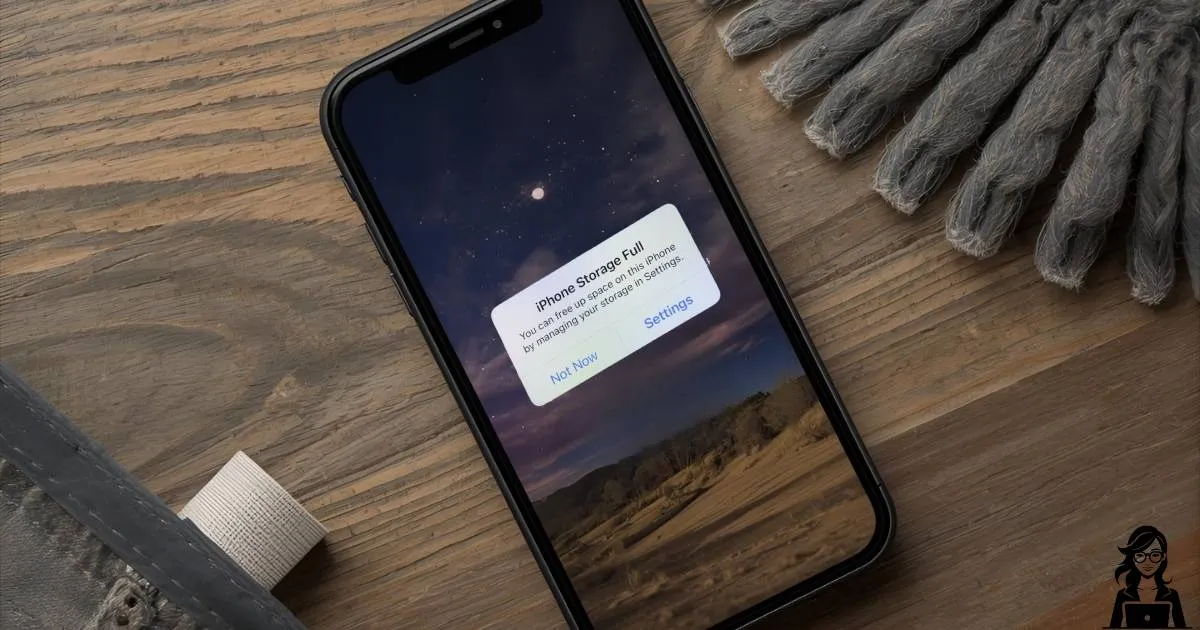
Yesterday I sat with Joyce in Caversham. Her iPhone was screaming “Storage Full” even though she only has 38 photos.
We freed 9 GB in under five minutes. Here’s exactly what we did (works on any iPhone):
- Settings → General → iPhone Storage → scroll down to “Messages”
- Tap “Review Large Attachments” → select everything → delete
- Back out → Safari → Clear History and Website Data
- Photos → Recently Deleted → “Delete All” (they stay hidden for 30 days!)
Joyce’s phone went from 0.2 GB free to 12 GB free, and she could finally update her apps again.
Try it now. I promise it’s safe and you won’t lose anything important.
If your phone still feels difficult, see Phone and Tablet Setup and Accessibility Tech Support.